Contact Us | Now on Sale at Switch Science

"My favorite force gauge won't connect to my new PC..."
"I want to automate measurement data acquisition more easily..."
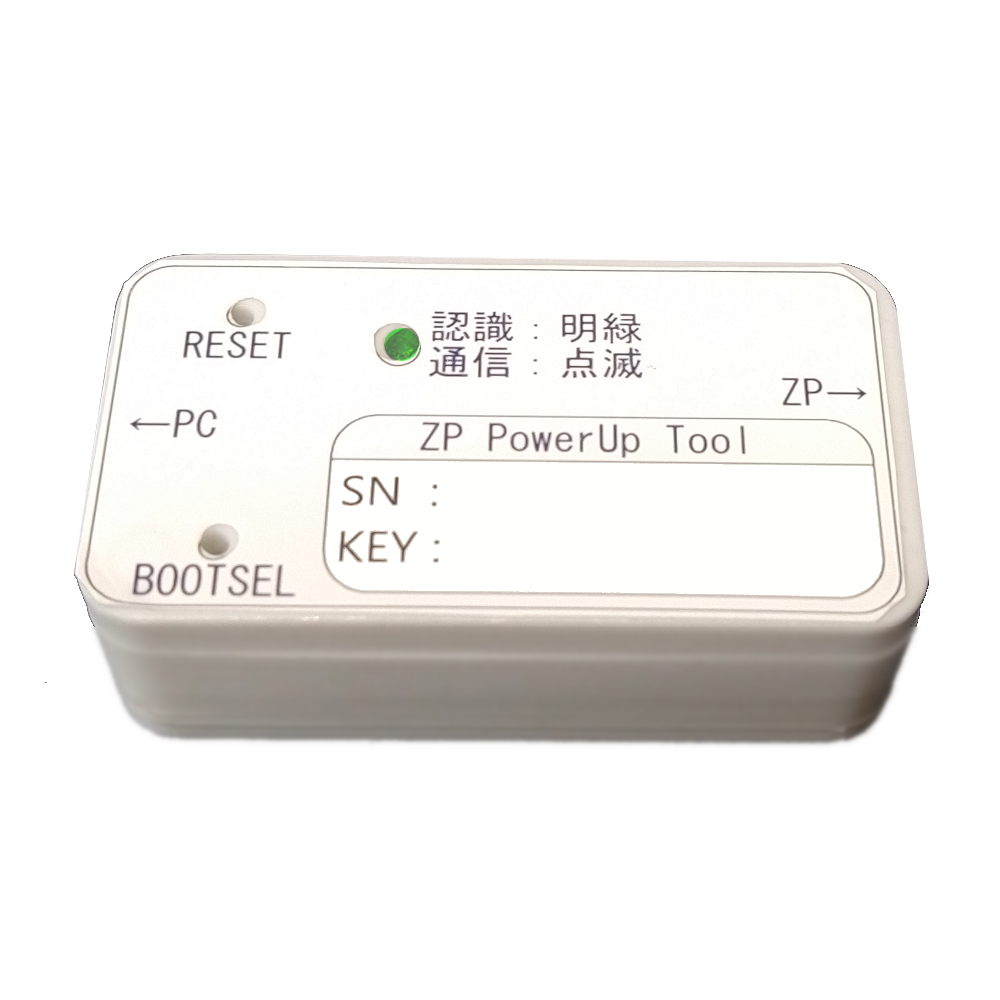
The ZP Powerup Tool solves these exact problems.
This is a conversion adapter that connects IMADA ZP/Z2 series force gauges to your PC as a "virtual COM port," requiring no special drivers. It converts the conventional, complex connection method (USB Vendor Bulk Transfer) into a versatile USB Serial (CDC) connection. This makes receiving data with standard terminal software and developing your own programs dramatically easier.
Simply connect the adapter, and your PC will automatically recognize it as a virtual COM port using standard drivers. This means special drivers and complex programming are no longer necessary. You can easily access your force gauge as a standard serial device from any terminal software or custom programs on Windows.
The adapter features a built-in HID keyboard emulation function. It can transmit the acquired measurement values to your PC as if they were typed on a keyboard. By simply placing your cursor in an Excel cell or a text editor, you can record numerical data directly without manual entry. This dramatically improves work efficiency and prevents transcription errors.
Powered by the Raspberry Pi RP2040 dual-core processor, the tool smoothly handles demanding tasks like acquiring data at a high speed of 1000 points per second while simultaneously outputting data via the keyboard function. Even during real-time graphing, you will experience no delays from keyboard output operations.
| Item | Conventional Method | With ZP Powerup Tool |
| Driver | Requires installation of a special driver. | Automatically recognized by standard drivers. |
| Software Development | Difficult; requires expert knowledge of WinUSB, etc. | Easy; uses standard serial communication. |
| Item | Specification |
| Compatible Models | IMADA ZP, Z2 Series (Models with USB Type-B port) |
| PC-Side Interface | USB Type-C |
| Force Gauge-Side Interface | USB Type-B |
| Controller | Raspberry Pi RP2040 |
| Dimensions & Weight | Approx. 55×29×19mm, 30g (main unit only) |
| What's in the Box | ZP Powerup Tool (Main Unit) |
| Country of Origin | Made in Japan |
*Please note: USB cables are required for operation but are not included. You will need a standard USB-C cable for the PC connection and a USB-B cable for the force gauge connection.
We provide sample programs to help you get started right away.
This is a basic Python program for serial communication with the ZP Powerup Tool.
import serial
import time

# --- Settings ---
COM_PORT = 'COM3'  # COM port for the ZP Powerup Tool
BAUD_RATE = 115200 # Baud rate must match the ZP Powerup Tool

# --- Main Logic ---
try:
    # Open the COM port
    # A timeout is important, otherwise readline() will wait forever
    ser = serial.Serial(COM_PORT, BAUD_RATE, timeout=0.1)
    print(f"Successfully opened {COM_PORT}")

    while True:
        # Let the user choose an operation
        print("\n--- Select an operation ---")
        print("1: Get Data (D)")
        print("2: Zero Reset (Z)")
        print("3: Change Unit (K: kgf, N: N, O: lbf)")
        print("4: Start Continuous Data (G)")
        print("q: Quit")
        choice = input("Enter number: ")

        if choice == '1':
            # Send D command
            print("Sending D command...")
            ser.write(b'D\r')
            # Wait for the device to respond
            time.sleep(0.1)
            response = ser.readline().decode('ascii').strip()
            print(f"Received data: {response}")

        elif choice == '2':
            # Send Z command
            print("Sending Z command...")
            ser.write(b'Z\r')
            print("Zero reset executed.")

        elif choice == '3':
            unit = input("Enter unit (K, N, O): ").upper()
            if unit in ['K', 'N', 'O']:
                print(f"Sending {unit} command...")
                # Send the command, encoded as ASCII
                ser.write(f"{unit}\r".encode('ascii'))
                print("Unit changed.")
            else:
                print("Invalid unit.")

        elif choice == '4':
            # Send G command to enter continuous mode
            print("Sending G command...")
            ser.write(b'G\r')
            print("Started receiving continuous data. (Press Ctrl+C to stop)")

            try:
                while True:
                    # Read and display data line by line
                    line = ser.readline().decode('ascii').strip()
                    if line: # Only print if there is data
                        print(line)
            except KeyboardInterrupt:
                # Send Y command to stop when Ctrl+C is pressed
                print("\nStopping continuous data...")
                ser.write(b'Y\r')
                print("Stopped.")

        elif choice.lower() == 'q':
            print("Exiting program.")
            break

        else:
            print("Invalid selection.")

except serial.SerialException as e:
    print(f"Error: Could not open {COM_PORT}. Please check the port number.")
    print(e)
finally:
    # Always close the COM port when the program ends
    if 'ser' in locals() and ser.is_open:
        ser.close()
        print(f"Closed {COM_PORT}")
This program requires the `pyserial` library. Please install it by running the following command in your command prompt or terminal.
pip install pyserialThis program is for users who want to acquire data in the MATLAB environment.
This program requires the **Instrument Control Toolbox**. If you do not have it, please install it from the MATLAB Add-On Manager or try the 30-day free trial.
% ZP Powerup Tool MATLAB Sample Program
% Prerequisites: Instrument Control Toolbox

% --- Initialization ---
clear;
clc;

% --- Settings ---
COM_PORT = "COM3";      % COM port where ZP Powerup Tool is connected
BAUD_RATE = 115200;     % Baud rate

% --- Main Logic ---
try
    % Create serial port object
    fprintf('Opening serial port %s...\n', COM_PORT);
    device = serialport(COM_PORT, BAUD_RATE);

    % Set the terminator to CR (carriage return, \r)
    configureTerminator(device, "CR");

    fprintf('Successfully opened %s.\n', COM_PORT);

    while true
        % Let the user choose an operation
        disp(newline); % Display a newline
        disp('--- Select an operation ---');
        disp('1: Get Data (D)');
        disp('2: Zero Reset (Z)');
        disp('3: Change Unit (K: kgf, N: N, O: lbf)');
        disp('4: Start Continuous Data (G)');
        disp('q: Quit');

        choice = input('Enter number: ', 's'); % Receive input as a string

        switch choice
            case '1'
                % Send D command (writeline automatically adds terminator)
                disp('Sending D command...');
                writeline(device, "D");

                % Read and display the response
                response = readline(device);
                disp(['Received data: ' response]);

            case '2'
                % Send Z command
                disp('Sending Z command...');
                writeline(device, "Z");
                disp('Zero reset executed.');

            case '3'
                unit = upper(input('Enter unit (K, N, O): ', 's'));
                if (unit == "K" || unit == "N" || unit == "O")
                    disp(['Sending ' unit ' command...']);
                    writeline(device, unit);
                    disp('Unit changed.');
                else
                    disp('Invalid unit.');
                end

            case '4'
                % Send G command
                disp('Sending G command...');
                writeline(device, "G");
                disp('Started receiving continuous data. (Press Ctrl+C to stop)');

                % Use a try-catch block to stop with Ctrl+C
                try
                    while true
                        % Read and display data line by line
                        line = readline(device);
                        disp(line);
                    end
                catch ME
                    % Send Y command to stop when Ctrl+C is pressed
                    disp(newline); % Display a newline
                    disp('Stopping continuous data...');
                    writeline(device, "Y");
                    disp('Stopped.');
                end

            case 'q'
                disp('Exiting program.');
                break; % Exit the while loop

            otherwise
                disp('Invalid selection.');
        end
    end

catch ME
    % Error handling
    fprintf('An error occurred: %s\n', ME.message);
    fprintf('Please check if the port is open or in use by another program.\n');
end

% --- Cleanup ---
% Close the device only if it was successfully created
if exist('device', 'var')
    clear device;
    fprintf('Closed %s.\n', COM_PORT);
end
When continuous data acquisition begins, the program focuses on high-speed data reception, and other commands cannot be entered. To stop continuous acquisition, please press Ctrl + C in the console (terminal) where the program is running.
Currently, sales and shipping are handled by Switch Science and are limited to Japan only. We are considering options for international sales in the future.
Technical Advisor: Google Gemini